Introduction
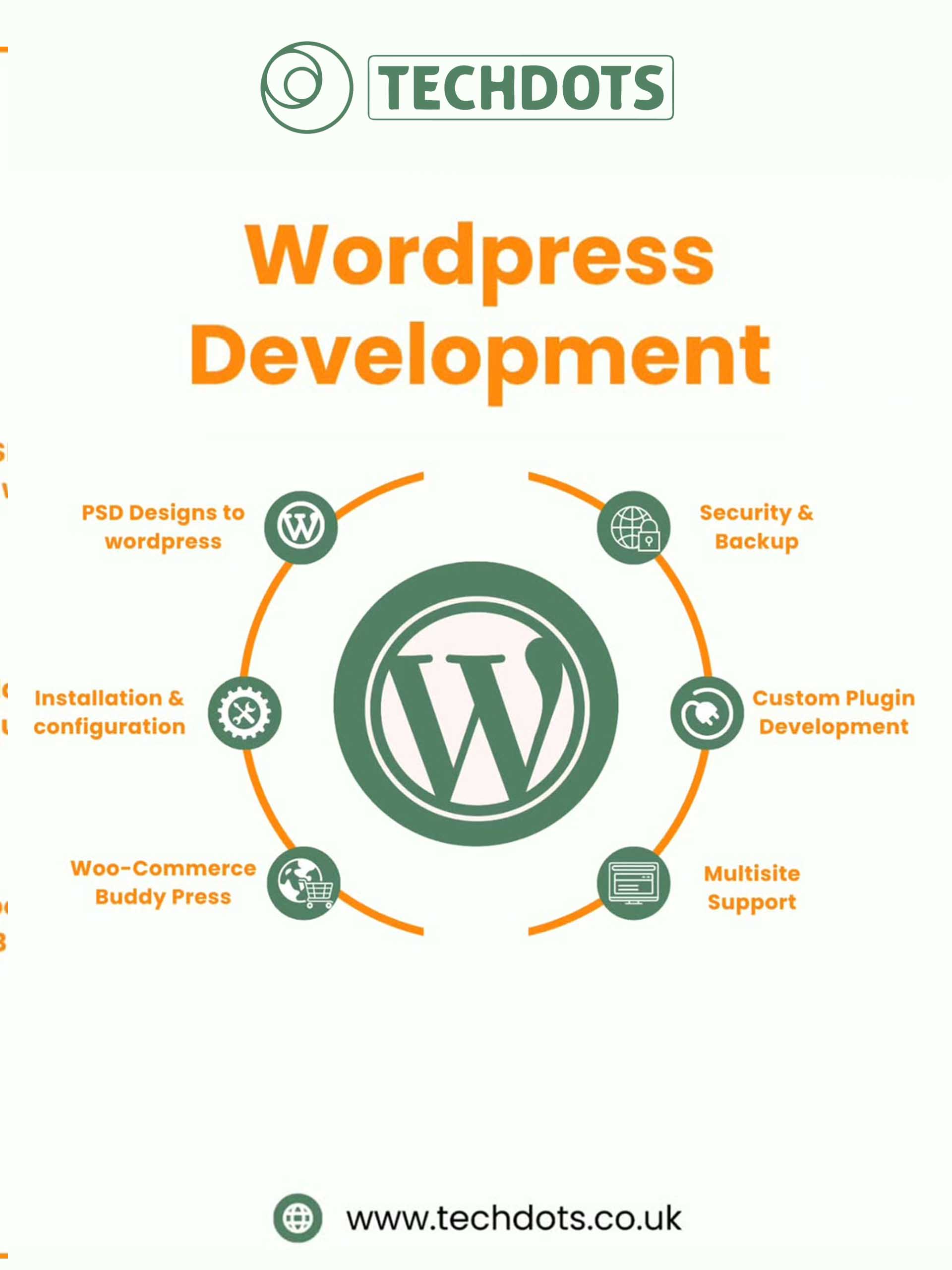
WooCommerce is the most popular eCommerce plugin for WordPress, powering over 28% of all online stores worldwide. Whether you’re selling physical products, digital downloads, or subscriptions, WooCommerce offers unmatched flexibility and scalability.
In this guide, you’ll learn:
✅ How to install and configure WooCommerce
✅ Essential settings for a high-converting store
✅ Must-have plugins to enhance functionality
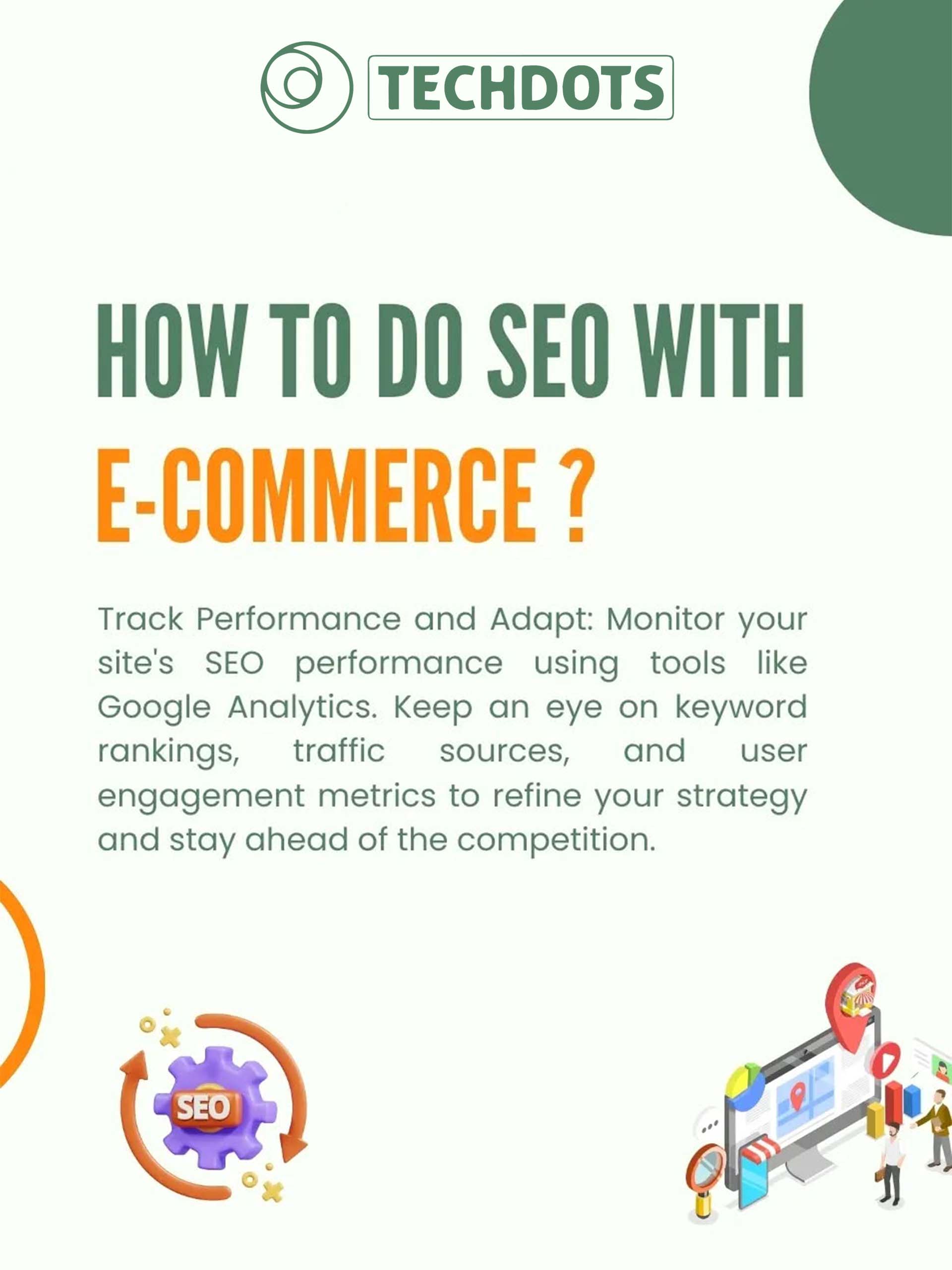
✅ SEO and marketing tips to drive sales
Let’s dive in!
Step 1: Install WooCommerce on WordPress
Before you begin, ensure you have:
✔ A WordPress website (self-hosted, not WordPress.com free plan)
✔ A domain name & hosting (recommended: SiteGround, WP Engine, or Bluehost)
Installation Steps:
Go to WordPress Dashboard → Plugins → Add New
Search for “WooCommerce” and click Install Now
Click Activate
Follow the Setup Wizard to configure basic settings
Step 2: Configure Basic WooCommerce Settings
A. General Settings
Currency & Location → Set your store’s base country, currency, and unit system.
Checkout Options → Enable guest checkout for faster purchases.
B. Payment Gateways
WooCommerce supports:
✔ PayPal & Stripe (most popular)
✔ Bank transfers & COD (Cash on Delivery)
✔ WooCommerce Payments (for direct credit card processing)
Pro Tip: Enable multiple payment options to reduce cart abandonment.
C. Shipping Options
Set up flat rate, free shipping, or real-time carrier rates (USPS, FedEx, etc.).
Configure shipping zones (local, national, international).
D. Tax Settings
Enable automated tax calculations (or set manual rates).
If selling digital products, check tax exemptions.
Step 3: Add Products to Your WooCommerce Store
Go to Products → Add New
Enter:
Product Name & Description (SEO-friendly)
Price & Sale Price (if running discounts)
Product Images & Gallery (high-quality visuals)
Categories & Tags (for better navigation)
Choose product type:
Simple Product (physical/digital)
Variable Product (e.g., sizes, colors)
Subscription/Downloadable Product (for memberships/eBooks)
Pro Tip: Use product variations for different sizes/colors to improve UX.
Step 4: Choose the Right WooCommerce Theme
Your store’s design impacts conversions. Recommended themes:
✔ Astra (fast & customizable)
✔ Flatsome (built for WooCommerce)
✔ Shopify-like themes (Divi, OceanWP)
Key Features to Look For:
✅ Mobile responsiveness
✅ Fast loading speed
✅ Built-in product page layouts
Step 5: Must-Have WooCommerce Plugins
Plugin Purpose
Yoast SEO Optimize product pages for search engines
WooCommerce Subscriptions Sell recurring products (SaaS, memberships)
MonsterInsights Track sales with Google Analytics
WP Rocket Speed up your store
CartFlows Reduce cart abandonment with better checkout flows
Step 6: Optimize for SEO & Conversions
A. SEO Best Practices
Use keyword-rich product titles & descriptions (e.g., “Buy Wireless Headphones – Best Noise Cancelling 2025”).
Read More About: Why LearnDash Is the Best LMS for Building Online Course Platforms in 2025